High Availability - "HA Backup"
22129
Created On 05/04/22 16:19 PM - Last Modified 08/23/23 22:13 PM
Symptom
HA1-Backup Link is in down state
HA2-Backup Link is in down state
Environment
PAN-OS
Cause
If the output of >show high-availability all shows HA1 Backup Control Link or HA2 Backup Data Link as 'Link state: down' on the Active or Active-Primary firewall in the HA pair, the user may experience failovers and/or a degraded network state.
While the most common reason for HA links going down is the physical link itself going down, there can be other reasons such as:
• Either firewall not able to process/receive HA heartbeats over that link at that time (Example: high CPU, high memory, resource issue, overutilization/DDoS, link issue etc.)
• Either firewall not able to respond to/send HA heartbeats over that link at that time (Example: high CPU, high memory, resource issue, overutilization/DDoS, link issue etc.)
• HA link hardware issue (faulty cable, faulty SFP, faulty port, firewall backplane issue, electrical issue)
• Geographic distance between the 2 firewalls in the HA pair is too long/far for the HA cable/SFP type specification
• Other system / process issues that can occur
Resolution
- Identify the exact date and timestamp the HA1 Backup Link or HA2 Backup Link went down
- Firewall GUI: Monitor > Logs click System
- Filter by the date and timestamp the HA1 Backup or HA2 Backup link went down
- Review the time of the HA Backup Link issue to see if any other interface, process, resource, or system issue occurred in the firewall around that time that could indicate an overall health issue with the firewall or any related event
- If other events are found which could have contributed to the HA1-Backup or HA2-Backup link(s) going down, find that event's root cause and resolve it
- Verify HA Backup links interface status
- Dashboard > Widgets > System > click High Availability
-
Use the command show high-availability interface < ha1-backup | ha2-backup >
Note: Always use SFP's from the list of supported SFP's by Palo Alto Networks for the HA ports. Unsupported SFP's have not been tested and validated for use in Palo Alto Networks devices. If an unsupported SFP is used, it is likely that the interface may never come up, flap, and other issues may occur. Palo Alto Networks TAC may refuse support if an unsupported SFP is used. If an unsupported SFP is currently being used, replace it with an SFP from the list of supported SFP's below before proceeding.
List of Supported SFP's/Transceivers
- Transceiver History Reference, 810-000096-00Y, Updated on 03-23-2022
- HW Accessory Cross Reference, 810-000077-0AV, Updated on 03-23-2022
- How to see currently installed SFPs
- Resolve any hardware/physical link issues by trying known-good/working hardware components
- Reseat the HA cable in both firewalls
- Reseat the HA port SFP in both firewalls
- Replace the HA cable with a known-good, working HA cable of the same type
- Replace the HA port SFP with a known-good, working HA port SFP of the same type
- Resolve any Management Plane or Data Plane Performance Issues (high CPU, high memory, high Packet Buffers/Packet Descriptors)
If the Management Plane or Data Plane get too busy, the firewall may not be able to reliably receive, process, or send HA heartbeat messages over the HA link(s). Use the below steps to identify, troubleshoot and resolve the high Management Plane or Data Plane utilization.
- Review Monitor > Log click System around the time of the HA failure occurring to identify if there was any high CPU / memory / Packet Buffer / Packet Descriptor utilization during that time
- Check the output of the following CLI commands:
> show system resources follow (shows current MP CPU/Memory usage)
Look for any high CPU or high Memory on a certain process - identify which process that is (Ex: mgmtsrvr, useridd, ha-agent, logrcvr, routed, authd etc.), troubleshoot why that process has high CPU/memory, and resolve it
In the example below, excessive logging was configured on the firewall in Security Policy rules, and in turn that was causing the logrcvr process on the firewall to use 100% of the Management Plane CPU. This caused other processes in the firewall to have issues such as the firewall ha_agent not being able to respond to HA Heartbeats in that moment. Once the amount of logging was reduced in Security Policy rules, the issue went away, and HA became stable again
> show running resource-monitor (shows current DP CPU/Memory/Packet Buffer/Packet Descriptor usage)
Look for any high utilization of CPU, Packet Buffers, Packet Descriptors, or Memory - identify which resource has high utilization and resolve it
In the example below, there was a large volume of traffic (similar to a DDoS) passing through the firewall at that time. As a result, the Data Plane CPU/packet buffers/packet descriptors became heavily utilized, and the firewall HA Heartbeats could not be processed by the firewall interfaces properly. Once the offending traffic flows were identified and stopped from coming through the firewall, Data Plane utilization went back down to normal levels and HA became stable again
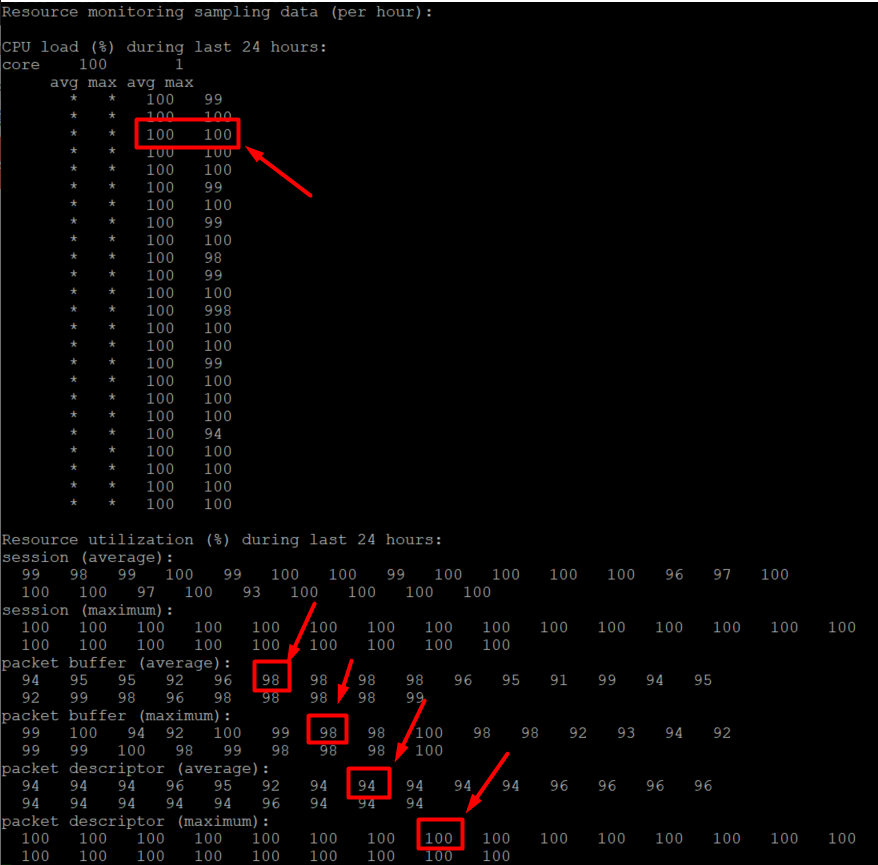
In the example below, there was a large volume of traffic (similar to a DDoS) passing through the firewall at that time. As a result, the Data Plane CPU/packet buffers/packet descriptors became heavily utilized, and the firewall HA Heartbeats could not be processed by the firewall interfaces properly. Once the offending traffic flows were identified and stopped from coming through the firewall, Data Plane utilization went back down to normal levels and HA became stable again
- Use the commands below to check log files for MP/DP usage values in the past at the date + timestamp of the recent HA failure:
>less mp-log mp-monitor.log
>less dp0-log dp-monitor.log
- Use the resources in the Additional Information section below to further identify, troubleshoot and resolve the high Management Plane or Data Plane utilization
- Verify HA Status is healthy
- Once the issue that caused the HA1 Backup or HA2 Backup link to be down in the first place has been identified and resolved (physical issue, HA link issue, MP/DP resource issue, system process issue, etc.), if needed, un-suspend the previously-unhealthy unit from Device > High Availability > Operational Commands > click Make local device functional for high availability
- Verify HA shows healthy again in both firewalls
Dashboard > click Widgets > System > click High Availability
Use the command show high-availability all
Additional Information
Management Plane
Example: How to Identify Management Plane high utilization
Management Plane vs Dataplane Processes
How to Interpret Output of "show system resources"
Resource List: Performance and Stability
Data Plane
How to Troubleshoot High Dataplane Utilization
How to Troubleshoot DoS Attacks
How to Troubleshoot High Packet Buffer and Packet Descriptor Issues
How to Troubleshoot High Packet Descriptors (on-chip)
Resource List: Performance and Stability
Other Resources
How to Troubleshoot Palo Alto Networks Firewalls (Video Course)
Resource List: Troubleshooting Performance Issues
Resource List: High Availability Configuration and Troubleshooting
Resource List: Troubleshooting High Availability Issues