To Register New Device or Spare
Login to account
- You will need to have a user account to log into the Customer Support Portal.
- Refer to How to Create a Customer Support Portal (CSP) User Account.
- Log into the Customer Support Portal (https://support.paloaltonetworks.com)
- Verify the Account Selector indicates the account that owns the asset. If not, select the correct account.
Register New Device - Assets or Devices Page
Register a new device in (a) Assets, or (b) Devices page.
Use Assets page.
Go to Products > Assets.
And, click button Account Actions > Register Product.
Or, use Devices page.
Go to Products > Devices.
Click button "Register New Device" button.
Then, follow the common device registration workflow below.
Enter the Serial Number and Location information. The Enterprise Support Agreement options will only appear when you enter a serial number and if the account has an ESA.
Click "
Agree and Submit".
The new device is displayed in the Device table.
At the end of the registration process, an optional step enables you to run
Day 1 Configuration. Then, follow the common device registration workflow below.
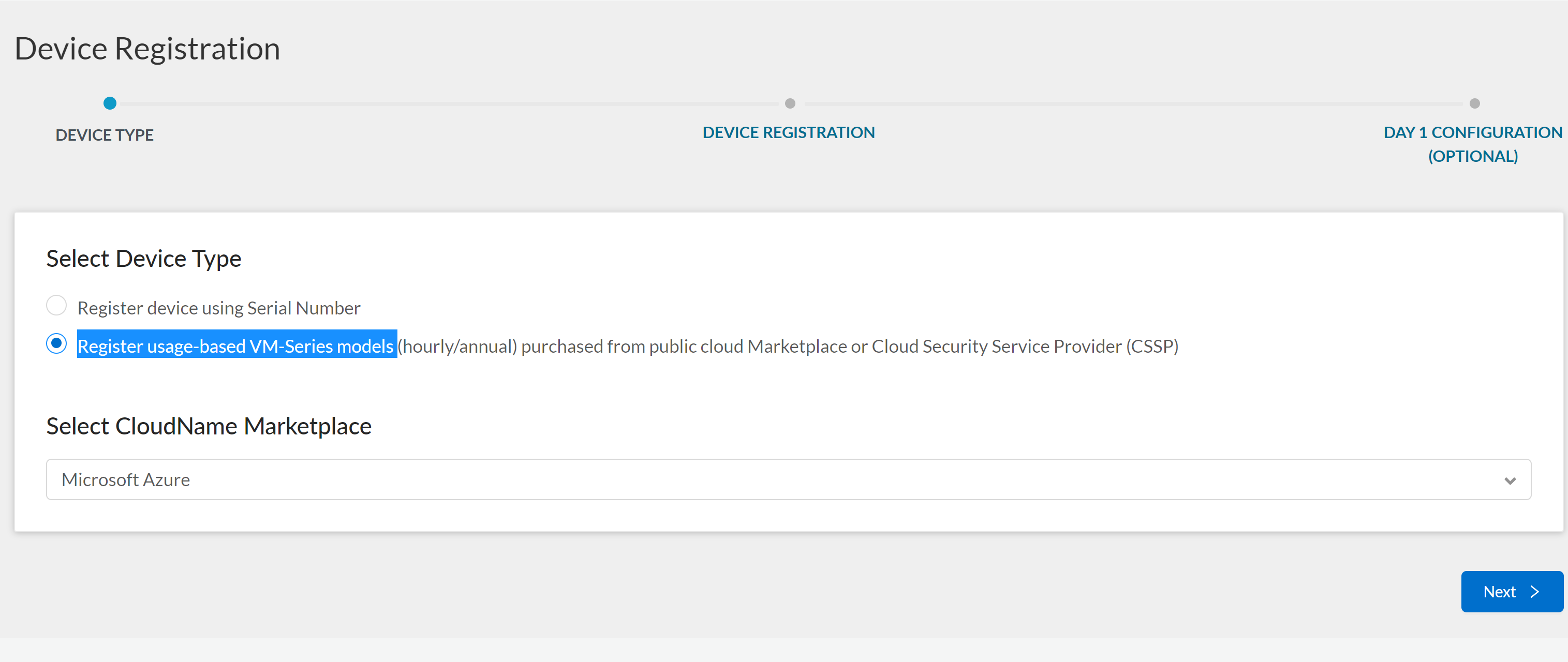
Enter the
Serial Number, Tenant id and
Location information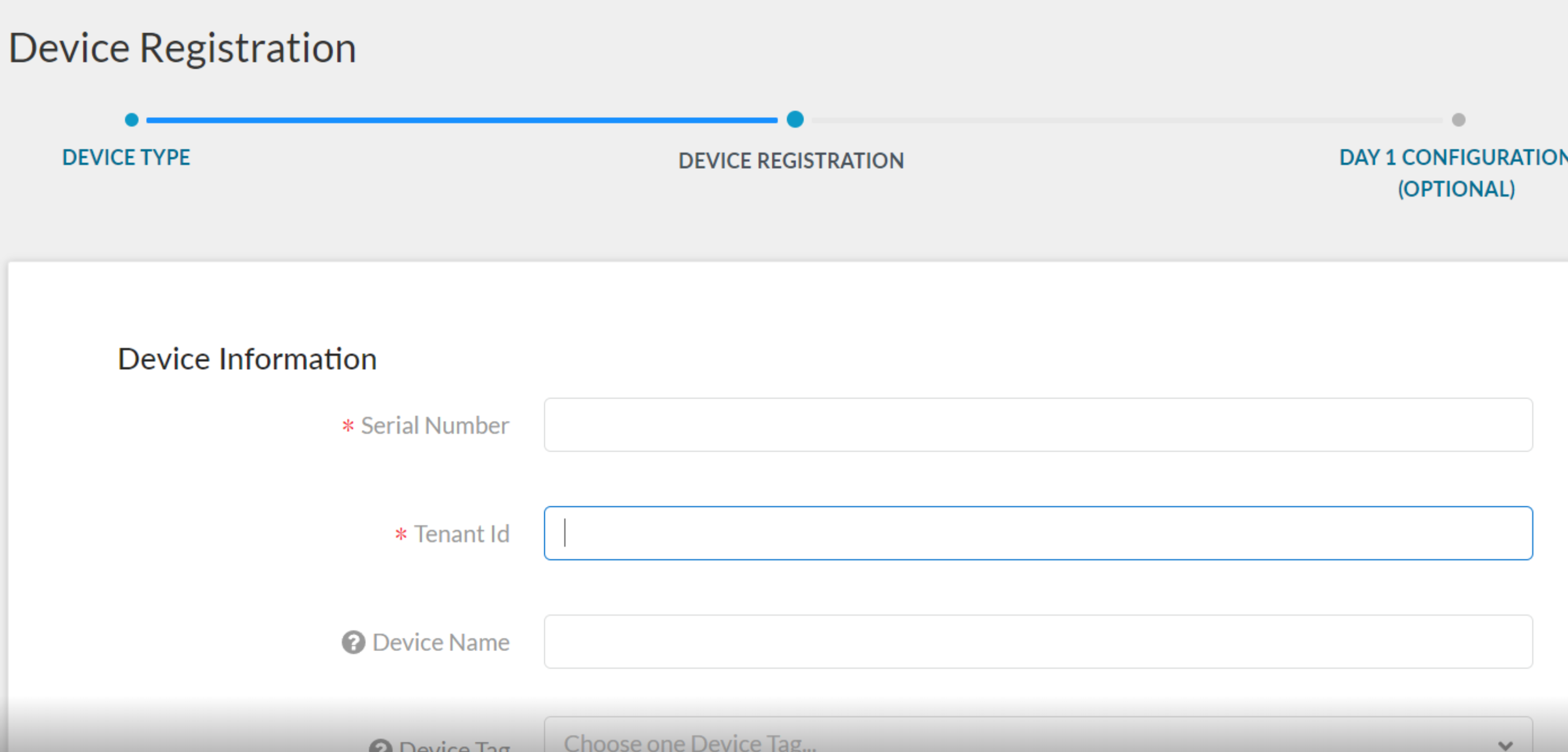
Click "
Agree and Submit".
Register New Spare
Click on Device > Spares.
Click Register New Spare button.
Complete Device Registration form. Whether registered under Devices or Spares, the serial number will only appear under Spares.
Note: If you have an Enterprise Support Agreement covering the licensing in your account, select the option to include the device in the Enterprise Support Agreement to license the device and convert it to production.
See Also
For a full list of other Support Portal User Documents, please click here:
Customer Support Portal User Documents