You have received an email notifying you a device is being transferred to you.

To accept/reject the transfer:
- Login to the Customer Support Portal (https://support.paloaltonetworks.com).
- Verify the Current Account is the account which will be receiving the device transfer. If not, click on the Account Selector and select the correct account.
You can accept / reject the Device transfer from the Products>Assets or Products>Devices
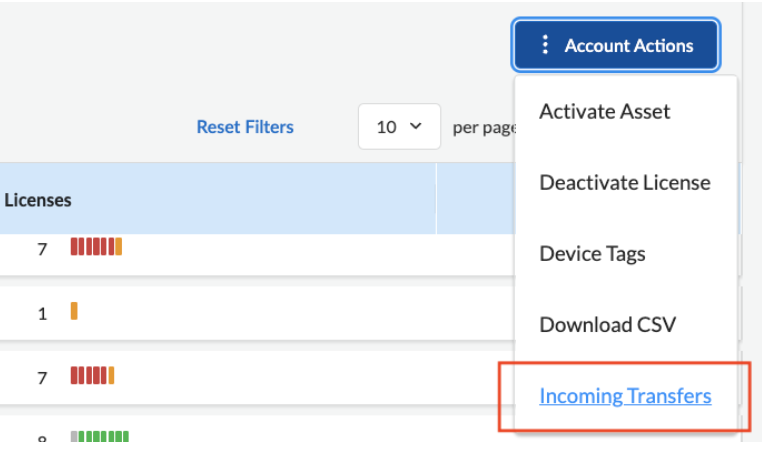
To accept Device transfer from Products>AssetsNavigate to Products>Assets>Account Actions>Incoming Transfers
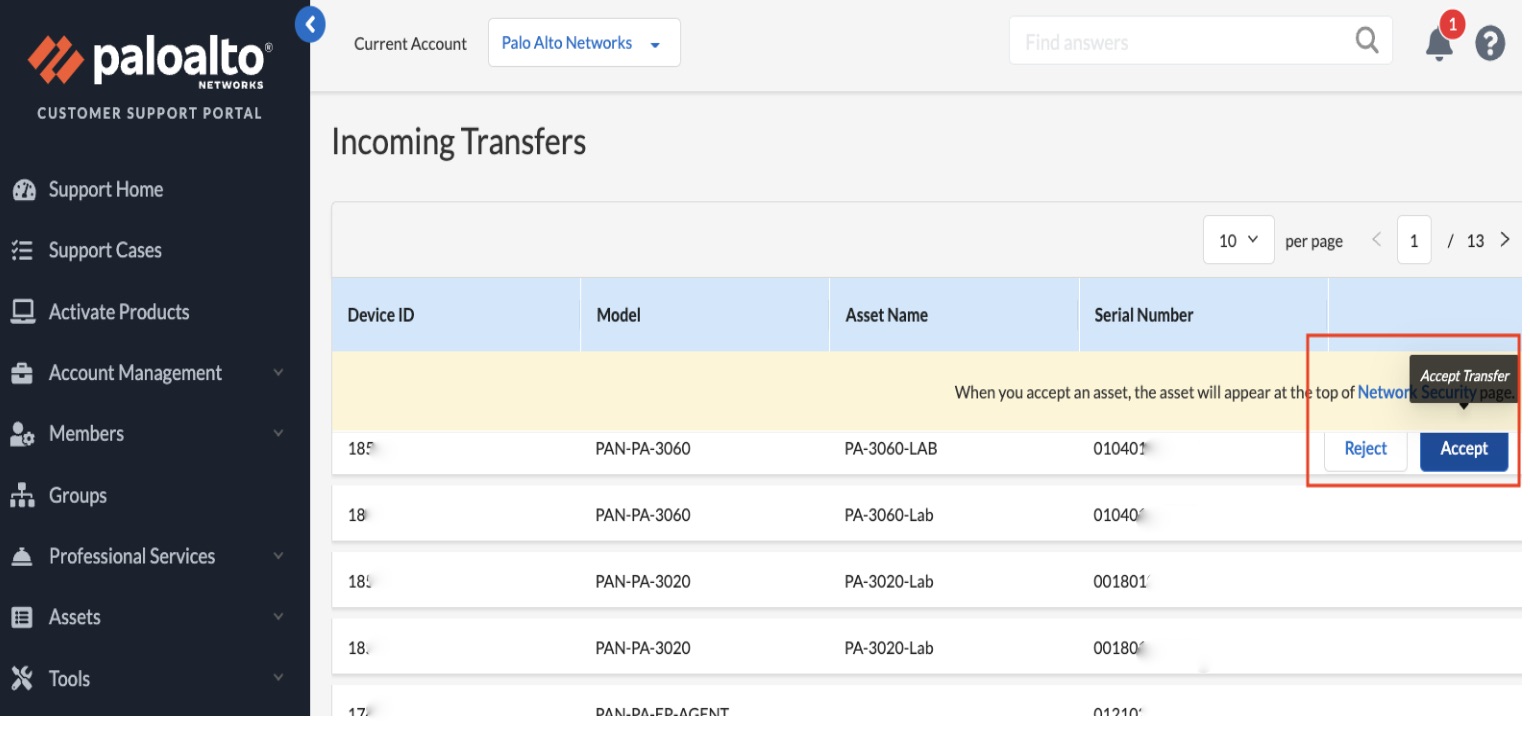
Hover to the right of the device to accept or reject the transfer.
 To accept Device transfer from Products> Devices
Click on the Products > Devices
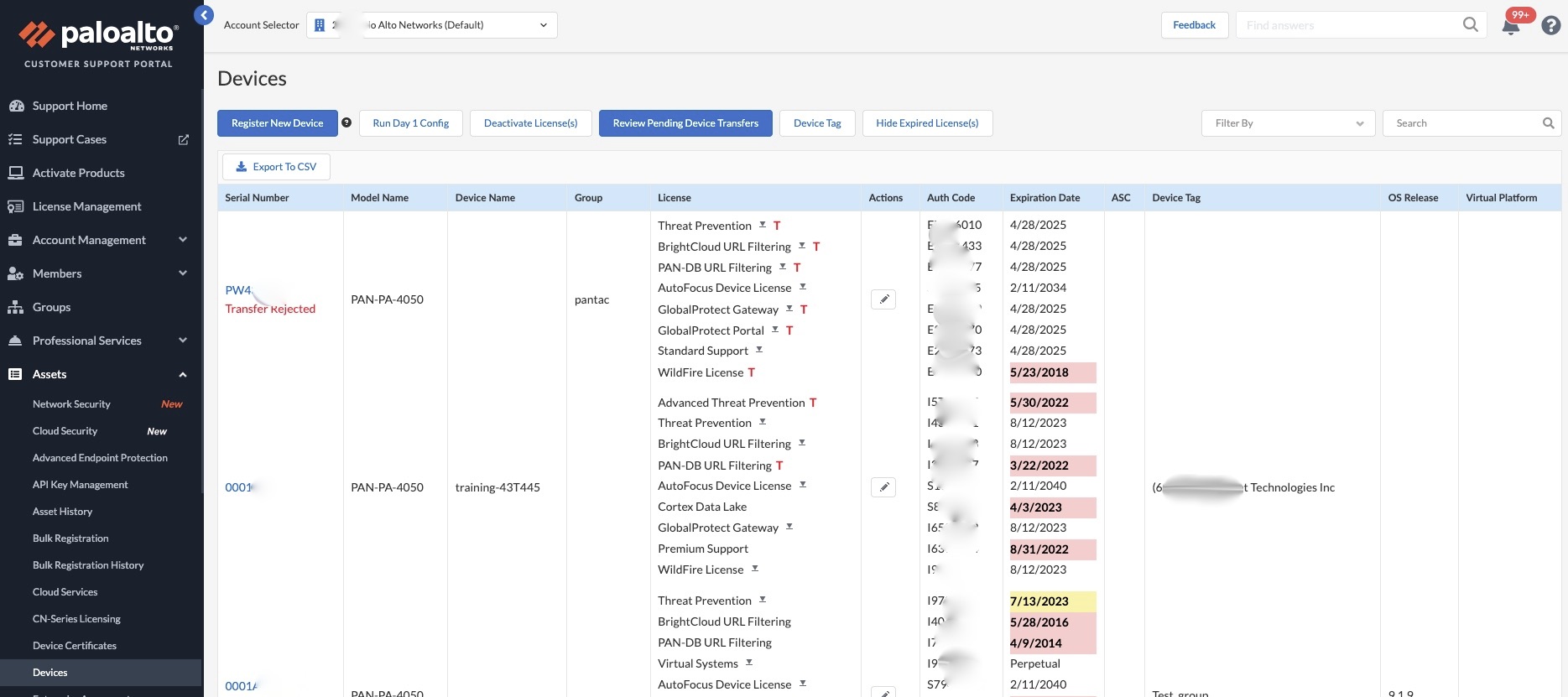
Click on the Review Pending Device Transfers button
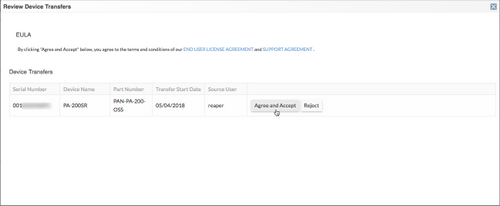
In the Review Device Transfers window, find the appropriate device and click the Accept or Reject button.
If you Accept the transfer, the device is added to the account and can be seen in the device table.
If you Reject the transfer, the device stays in its current account and the message Transfer Rejected is displayed in the device table.