1-Configure Syslog forwarding profile.
Device > Server Profiles > Syslog

2-Configure Log Forwarding Profile under Objects and point to Syslog Profile
Objects > Log Forwarding and Add a profile

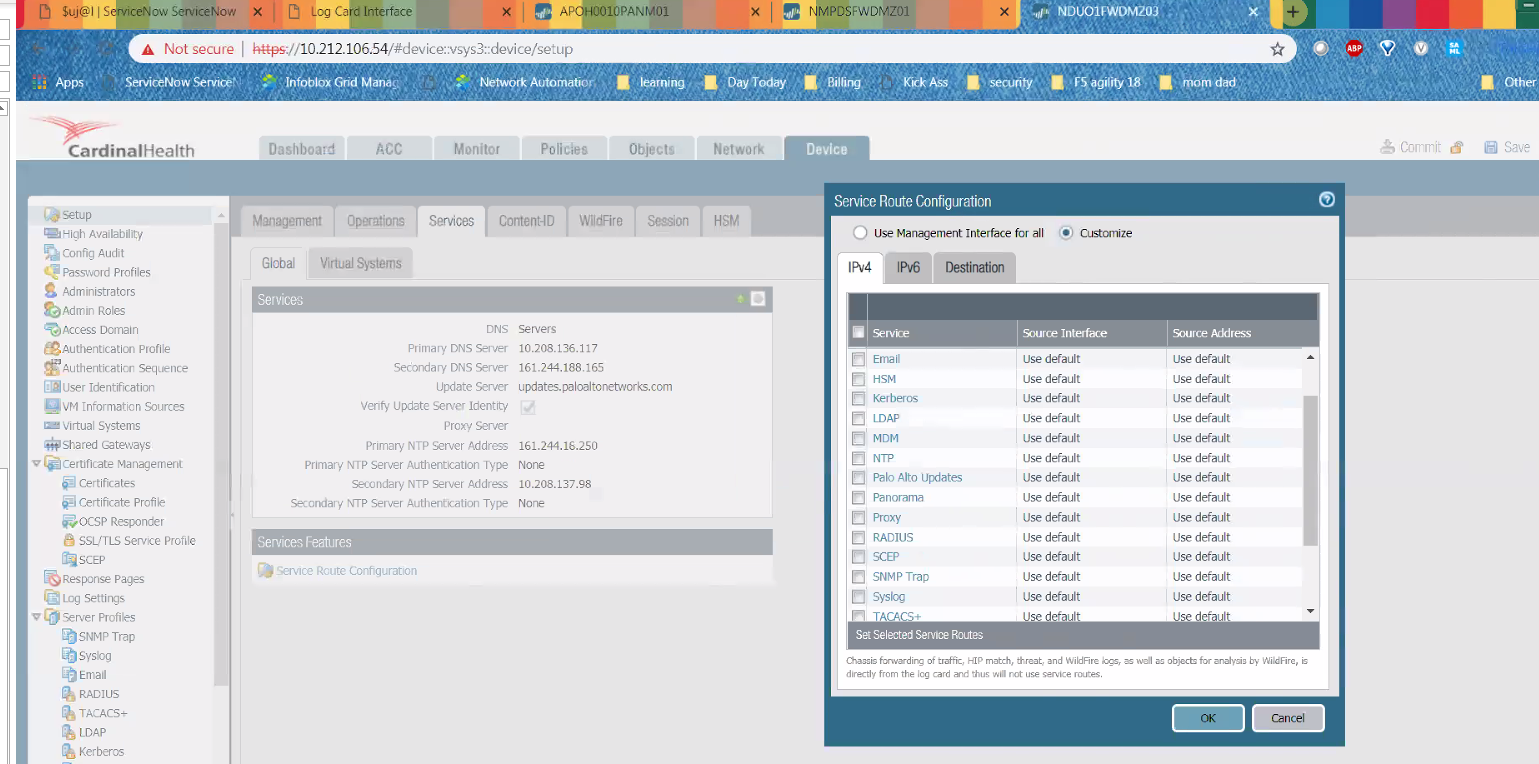
Note by default Service Route is set as default.
Device > Setup > Services > click "Service Route Configuration"
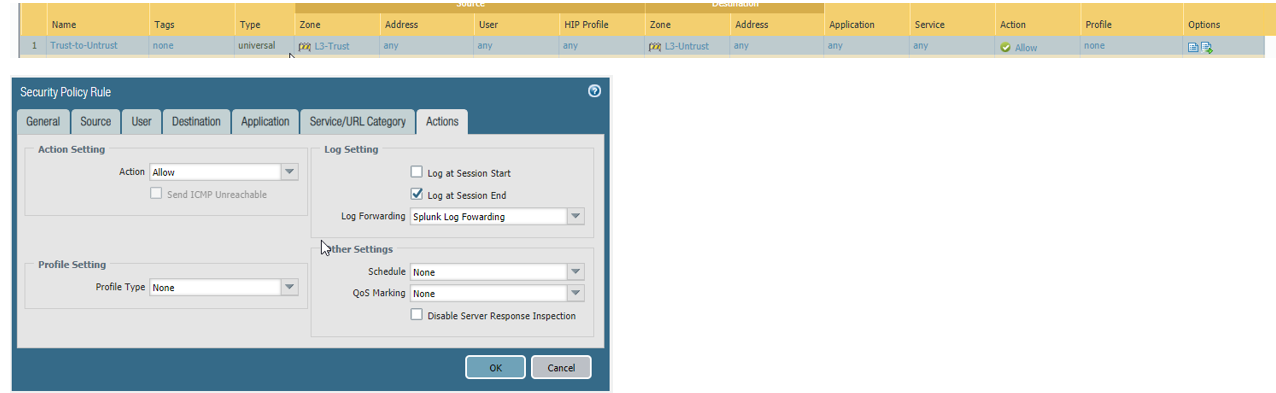
3-Assign the Log Forwarding profile to policy rules and network zones.
Policies > Security > Add Log Forwarding to policy.
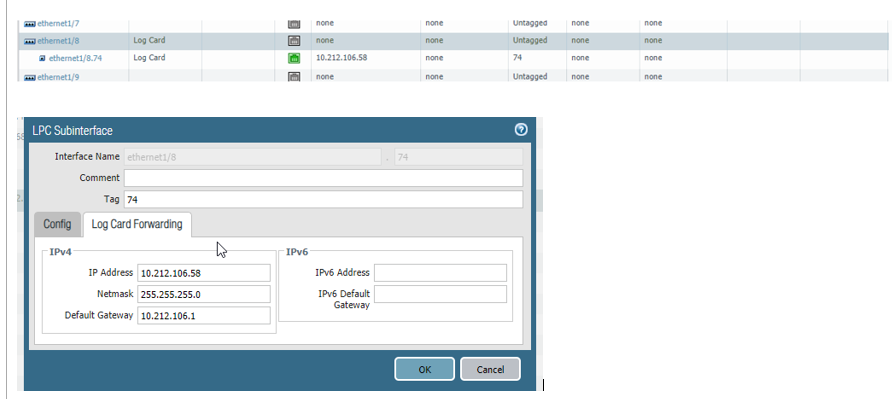
4- Enable Log Card the interface.
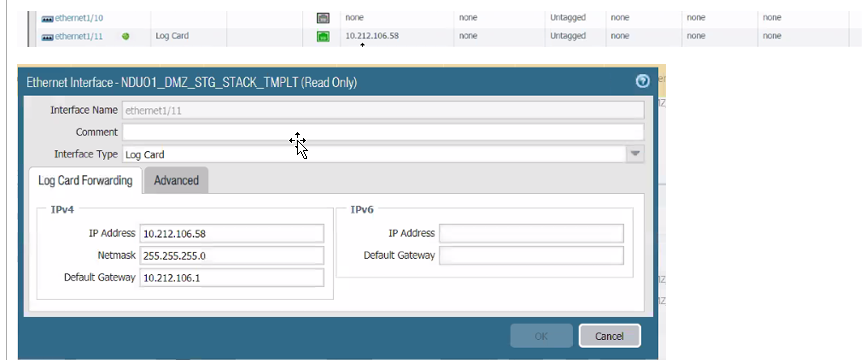
or with vlan 74
To verify LPC is working
-Check LPC is up and defect LPC card
7K(active)> show chassis inventory | match LPC
7 PA-7000-LPC 001401001198 0 1.0 300
7K(active)> show chassis status
Slot Component Card Status Config Status Disabled
1 PA-7000-20G-NPC Up Success
2 PA-7000-20G-NPC Up Success
3 PA-7000-20GQ-NPC Up Success
4 empty
5 empty
6 PA-7080-SMC Up Success
7 PA-7000-LPC Up Success <<<
-Check interface is configure for log foward
7K(active)> show interface all | match log <<show what interface is configure with log fowarding as log-card interface
ethernet1/8 523 0 logfwd 0 N/A
-verify reachable to Syslog server from LPC.
7K(active)> debug log-card-interface ping slot s7 host <ip of syslog>
64 bytes from 10.212.64.149: icmp_seq=1 ttl=253 time=0.381 ms
64 bytes from 10.212.64.149: icmp_seq=2 ttl=253 time=0.127 ms
note: 10.212.64.149 is Splunk Syslog server
-verify LPC is getting log
7K(active)> debug log-card-interface info slot s7 | match packet
packets received 9122564
packets transmitted 17677564751 <<incrementing
7K(active)> debug log-card-interface info slot s7 | match packet
packets received 9122565
packets transmitted 17677565619 <<incrementing
-verify Log is being forward out for interface eth 1/8
7K(active)> debug log-receiver statistics | match syslog
External Forwarding stats:
Type Enqueue Count Send Count Drop Count Queue Depth Send Rate(last 1min)
syslog 17673493691 17673493691 <<incrementing
pa-sujal.patel@NDUO1FWDMZ03(active)> debug log-receiver statistics | match syslog
syslog 17673495661 17673495661 <<incrementing
-verify inteface ethernet 1/8 forward traffic
7K(active)> show interface ethernet1/11 | match tx-bytes
tx-bytes 443080192
7K(active)> show interface ethernet1/11 | match tx-bytes
tx-bytes 443080256
-Additional debug may require PCAP be take on device connected on eth1/8 to see raw syslog packet.
F5: K13637: Capturing internal TMM information with tcpdump
https://support.f5.com/csp/article/K13637
tcpdump -vvv -ni VLAN181:nnn -s0 -w /var/tmp/<file.pcap> host <fW interface with log-fwdg>
How to Capture Packets on Cisco Devices
https://community.cisco.com/t5/networking-documents/how-to-capture-packets-on-cisco-devices/ta-p/3125132
1-Configure Syslog forwarding profile.
Device > Server Profiles > Syslog
2-Configure Log Forwarding Profile under Objects and point to Syslog Profile
Objects > Log Forwarding and Add a profile
Note by default Service Route is set as default.
Device > Setup > Services > click "Service Route Configuration"
3-Assign the Log Forwarding profile to policy rules and network zones.
Policies > Security > Add Log Forwarding to policy.
4- Enable Log Card the interface.
or with vlan 74