To configure email alerts
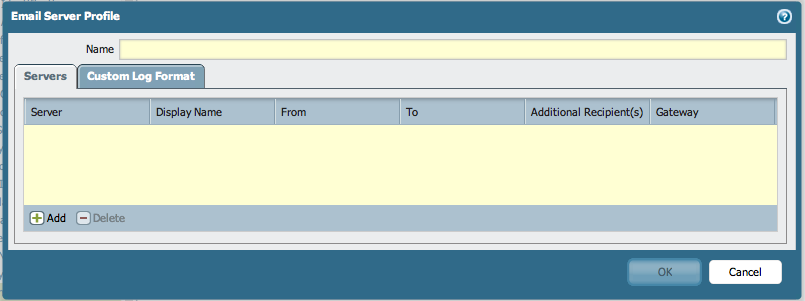
- Create a profile for your email server:
Go to Device > Server Profiles > Email then click Add.Name your profile, determine the appropriate VSYS if applicable, fill in the Servers tab and Custom Log Format tab if desired. Click ? for help with information on the form.
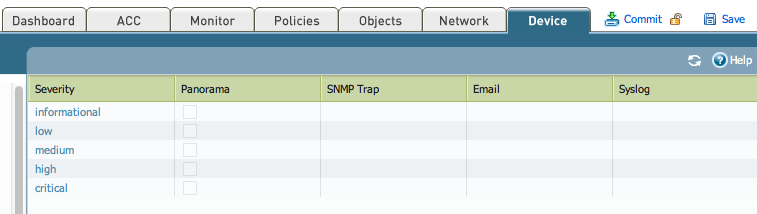
- To apply the email server profile, go to: Device > Log Settings > System and choose the email server you have just configured from the drop-down menu for each log notification type (Critical, High, Medium, Low, Informational)
- To schedule emailed reports:
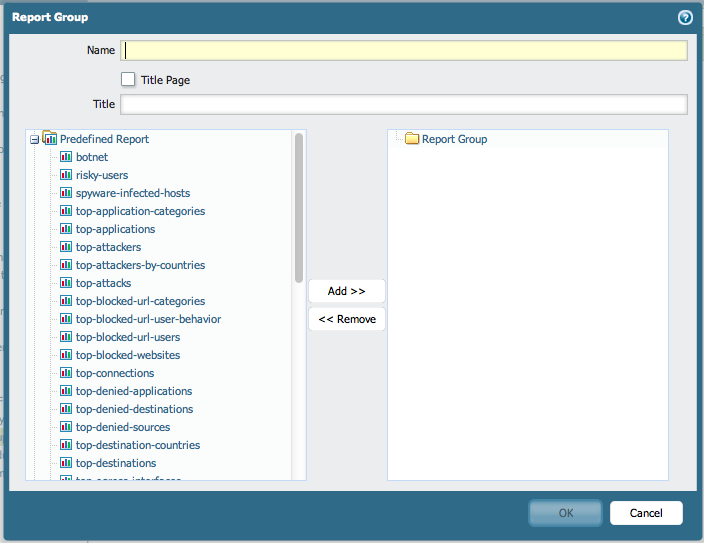
- First select the types of reports you'd like to receive:
Monitor > PDF Reports > Report Groups
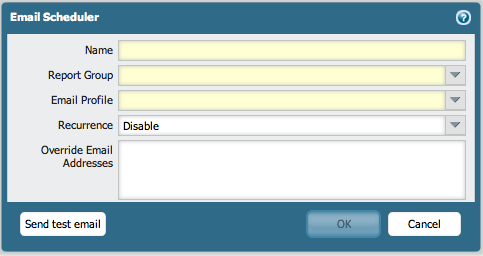
- Select the report group and schedule the email:
Monitor > PDF Reports > Email Scheduler
owner: panagent