Prisma Cloud: How to Manually Add Missing Role Permissions in AWS to Resolve Amber Cloud Account Status
5738
Created On 10/21/22 02:07 AM - Last Modified 04/18/24 18:31 PM
Objective
In this How To you will learn how to manually add missing Prisma Cloud role permissions in AWS to resolve amber cloud account status.
Environment
- AWS
- Prisma Cloud
Procedure
If you notice that your AWS cloud account is signaling an amber status, it could be because of missing permissions.
Prisma Cloud and AWS update permissions periodically according to new releases.
This may require the users to manually update their permissions.
Please follow the steps below to remediate the issue:
GUI Path: Prisma Cloud > Settings > Providers > Edit Cloud Account
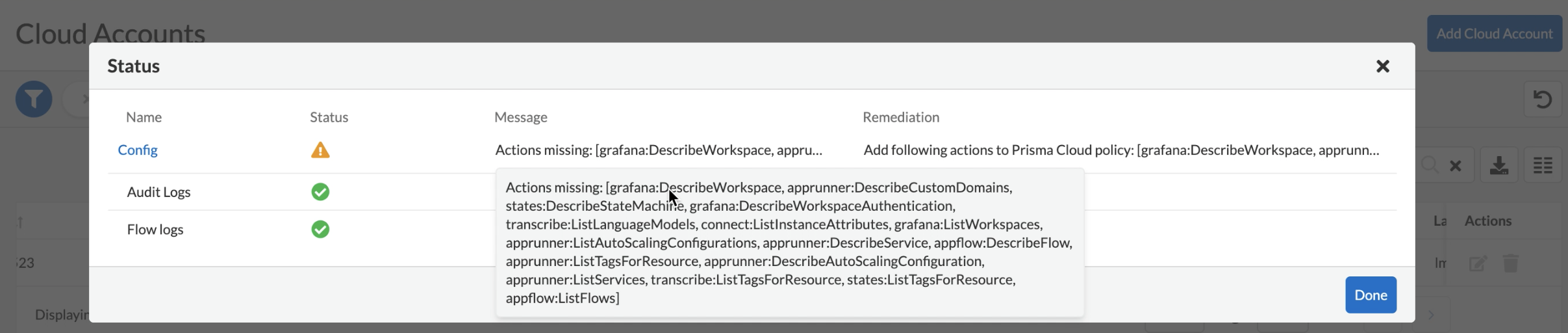
- Sign in to your AWS Console and go to IAM
- Ensure that you have IAM administrator permissions.
- Select Prisma Cloud Role created from the CloudFormation template
GUI Path: IAM > Roles > PrismaCloudReadOnlyRole
- Select any permissions policy under that Prisma Cloud read only role
GUI Path: IAM > Roles > PrismaCloudReadOnlyRole > Permissions > Select Permission policy to edit
- Once selected Edit the permissions policy and copy and paste the missing permissions from Prisma Cloud directly into the JSON edit for the permissions policy. Make sure the formatting is correct.
GUI Path: IAM > Roles > PrismaCloudReadOnlyRole > Permissions > Edit in JSON > Add permissions from Prisma Cloud
- Then Save the IAM policy and allow for an ingestion cycle of 4 hours to Prisma Cloud to pick up the newly added permissions. Then your cloud account status will revert back to green for Config permissions.
Additional Information
View our documentation here on how to onboard an AWS cloud account into Prisma Cloud.