Enter maintenance mode on a Firewall or Panorama hosted on AWS via EC2 Serial Console.
Objective
Entering maintenance mode on an AWS-hosted Firewall or Panorama via EC2 Serial Console.
Environment
Requirements:
- AWS-hosted PA-VM or Panorama instance that:
- Runs PAN-OS version 10.0 or higher,
- Is hosted on an instance type that is built on the AWS Nitro System (e.g. m5.2xlarge, m5.xlarge) (Amazon Web Services, 2024).
- Access to the AWS console.
- AWS-Account-level access (e.g. via IAM policies) to access EC2 Serial Console for the aforementioned instance (Amazon Web Services, 2024).
Procedure
Before you begin:
- It’s recommended that you review these steps before proceeding, since step 4 requires constant attention and, in switching between this article and the console tab, you might miss the window described in step 4.
- If you miss the window described in step 4, you can start afresh from step 1.
- It’s possible that the actual reboot doesn’t occur immediately and that the console prompt doesn’t change immediately (to what is described in step 4b) after you complete step 3.
- For instance, in the test lab used to write this article, the screen in 4b was obtained after about 5 minutes after completing step 3.
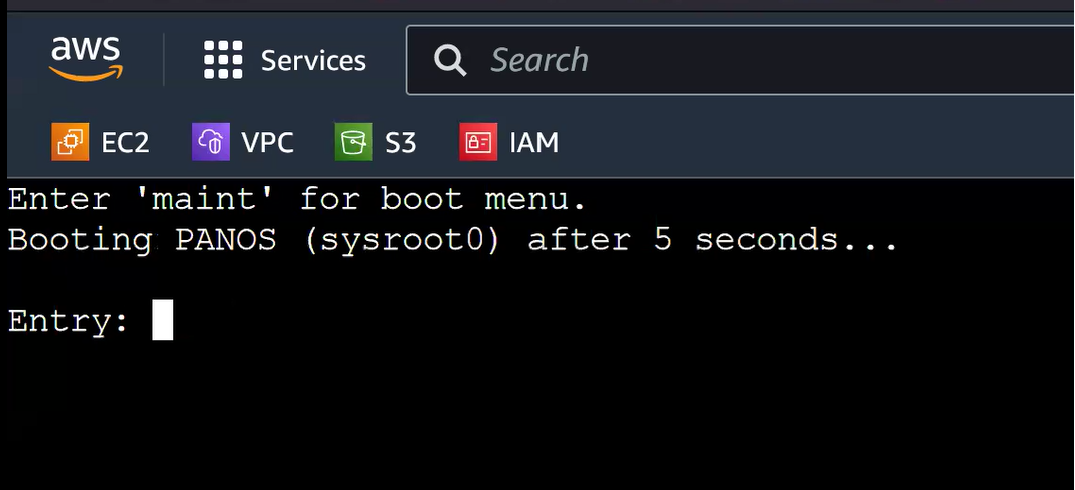
- After coming across the screen described in step 4b, the window to enter the letters ‘maint’ followed by the Enter key is 5 seconds, which might be a challenge.
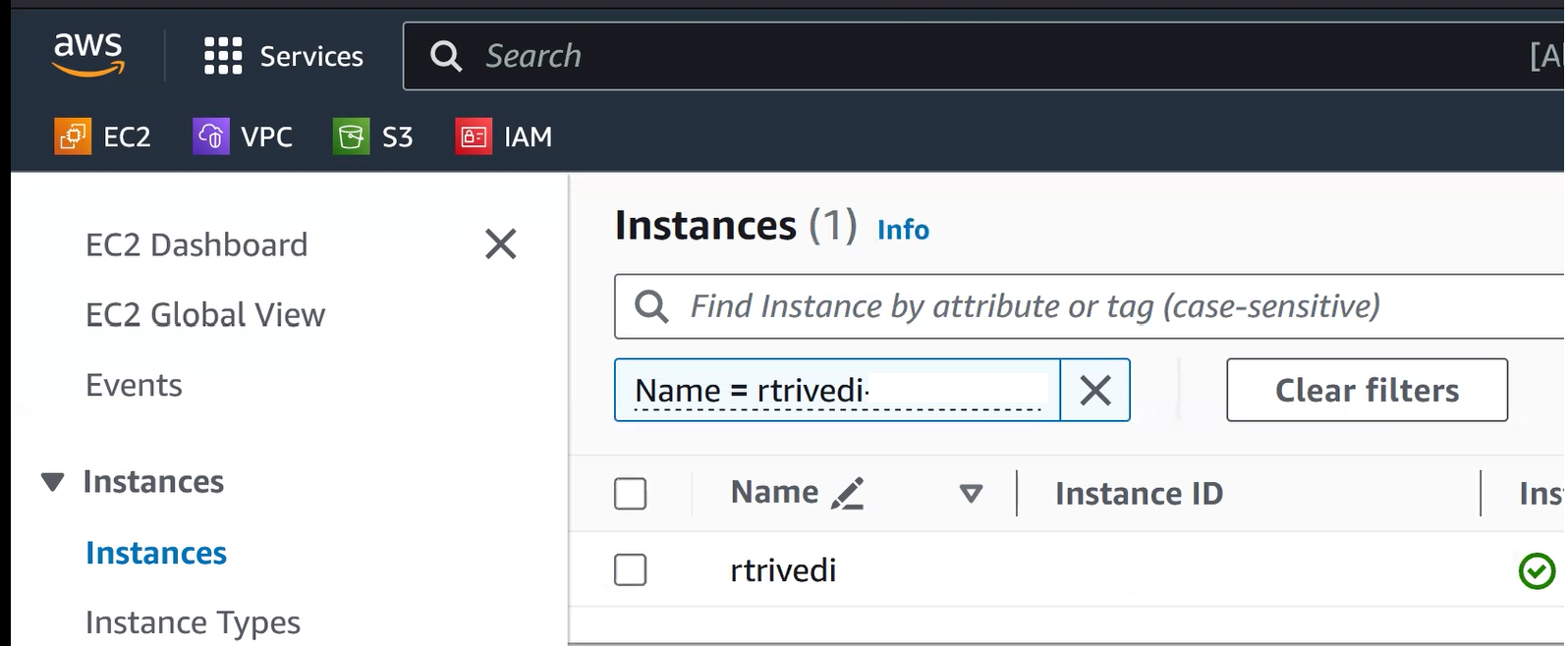
- Log into the AWS Console and identify the PA-VM instance that needs to be in maintenance mode:
- Establish EC2 serial console:
- Right click on the instance name and click on “Connect”; alternatively, select the instance (green check mark next to the instance name) and then click on “Connect” towards the top right of the window.
- Select “EC2 serial console” when the next page shows up, and then click on “Connect”:
- Verify whether a new tab, containing the serial console, opened on your browser:


- Rebooting the Firewall:
- Back on the Instances page, right click on the instance and select “Reboot instance”:

- [TIME-SENSITIVE] On the serial console, enter maintenance mode when prompted:
- Quickly switch to the serial console tab that was opened in step 2c.
- Wait until you see the following screen (it might take a few minutes for this screen to show up, but it shows up abruptly and the window to enter ‘maint’ is 5 seconds):
- Type ‘maint’ as directed, and hit the Enter key (this should be done in under 5 seconds):
- In the screen that pops up next, choose “PANOS (maint)”:


- After a couple of minutes, review the screen you get; it should look like this:

Additional Information
References
Amazon Web Services. (2024). Configure access to the EC2 Serial Console. AWS Documentation. https://docs.aws.amazon.com/AWSEC2/latest/UserGuide/configure-access-to-serial-console.html
Amazon Web Services. (2024). Instances built on the Nitro System. AWS Documentation. https://docs.aws.amazon.com/AWSEC2/latest/UserGuide/instance-types.html#ec2-nitro-instances
mvenkatesan. (2023, 06 08). How to Reinstall or Revert PAN-OS from Maintenance Mode. Palo Alto Networks Knowledge Base. https://knowledgebase.paloaltonetworks.com/KCSArticleDetail?id=kA10g000000Cm9zCAC
rvanderveken. (2023, 06 16). How to Enter Maintenance Mode on the Palo Alto Networks Firewall. Palo Alto Networks Knowledge Base. https://knowledgebase.paloaltonetworks.com/KCSArticleDetail?id=kA10g000000ClpjCAC