Prisma Cloud Compute: App Embeded defender running on Azure Devops pipeline unable to connect to Console
Symptom
- No Defender shown as connected on the console.
- These are the logs printed in cloud trail logs when you add tw_debug=true as an environment variable.
-
1728676008085,[36m DEBU 2024-10-11T19:46:48.085 ws.go:373 [0m Reconnecting to wss://us-east1.cloud.twistlock.com/us-1-113035106:443 queue: 2
1728676008291,[36m DEBU 2024-10-11T19:46:48.290 ws.go:407 [0m Connection failed. Sleeping 2.00 [s] websocket: bad handshake
Environment
- Prisma Cloud Enterprise Edition
Cause
Incorrect host address, an example script in the task definition to deploy app-embed defender using dockerfile deployment method.
- task: twistcli-rasp@1
displayName: 'Embed Prisma Defender RASP'
inputs: twistlockService: 'Prisma Cloud RASP - SaaS'
appID: '$(ApplicationShortName)'
consoleHost: 'us-east1.cloud.twistlock.com/us-x-xxxxxxxxx'
dataFolder: '/twistlock'
dockerfile: '**/Dockerfile'
Resolution
The console address in customers environment is currently listed as "consoleHost: 'us-east1.cloud.twistlock.com/us-x-xxxxxxxxx'," which should not include the customer ID. The correct console address that should be used is "us-east1.cloud.twistlock.com:443."
To get the console address, navigate to:
- Runtime security>Manage>System>Utilities>There will be a path to console.
- Copy path to console starting from us-xxx up-til twistlock.com
- add port 443. (Example of the console address: us-east1.cloud.twistlock.com:443)
Add the console address to the pipeline script in Azure DevOps where the app-embedded defender is added.
To access the YAML pipeline editor, do the following steps.
Edit a YAML pipeline
To access the YAML pipeline editor, do the following steps.
-
Sign in to your organization (
https://dev.azure.com/{yourorganization}). -
Select your project, choose Pipelines, and then select the pipeline you want to edit. You can browse pipelines by Recent, All, and Runs. For more information, see view and manage your pipelines.
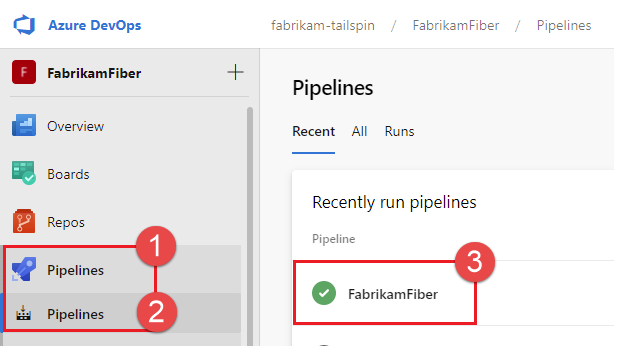
-
Choose Edit.
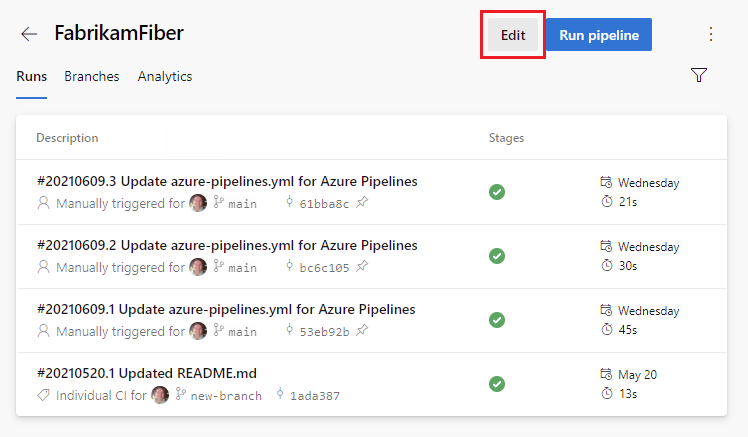
-
Make the edit for console address in your script.
-
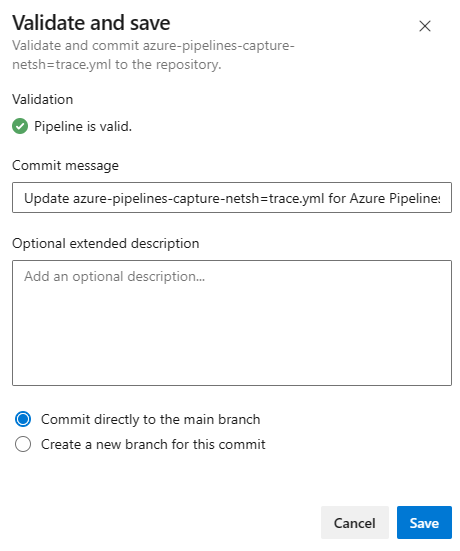
Choose Validate and save. You can commit directly to your branch, or create a new branch and optionally start a pull request.